pulpSheet is the pulpSuite spreadsheet. It opens your Excel and LibreOffice workbooks and your CSV files in the browser, with nothing to install, and saves them back to .xlsx while keeping whatever it cannot edit. It is meant for anyone who keeps a budget, tracks invoices, plans a team schedule or analyses data.
Getting started
- Open pulpSheet. The first time you open it, a sample workbook appears on its own (a site budget and a timesheet for a fictitious company, with formulas and a chart) so you can see what pulpSheet looks like; Start from scratch or Remove the example clears it in one click, and File › See the example again brings it back. As soon as you change it, it becomes your workbook. The New workbook button offers four templates: Monthly budget, Invoice tracker, Team schedule and Blank workbook.
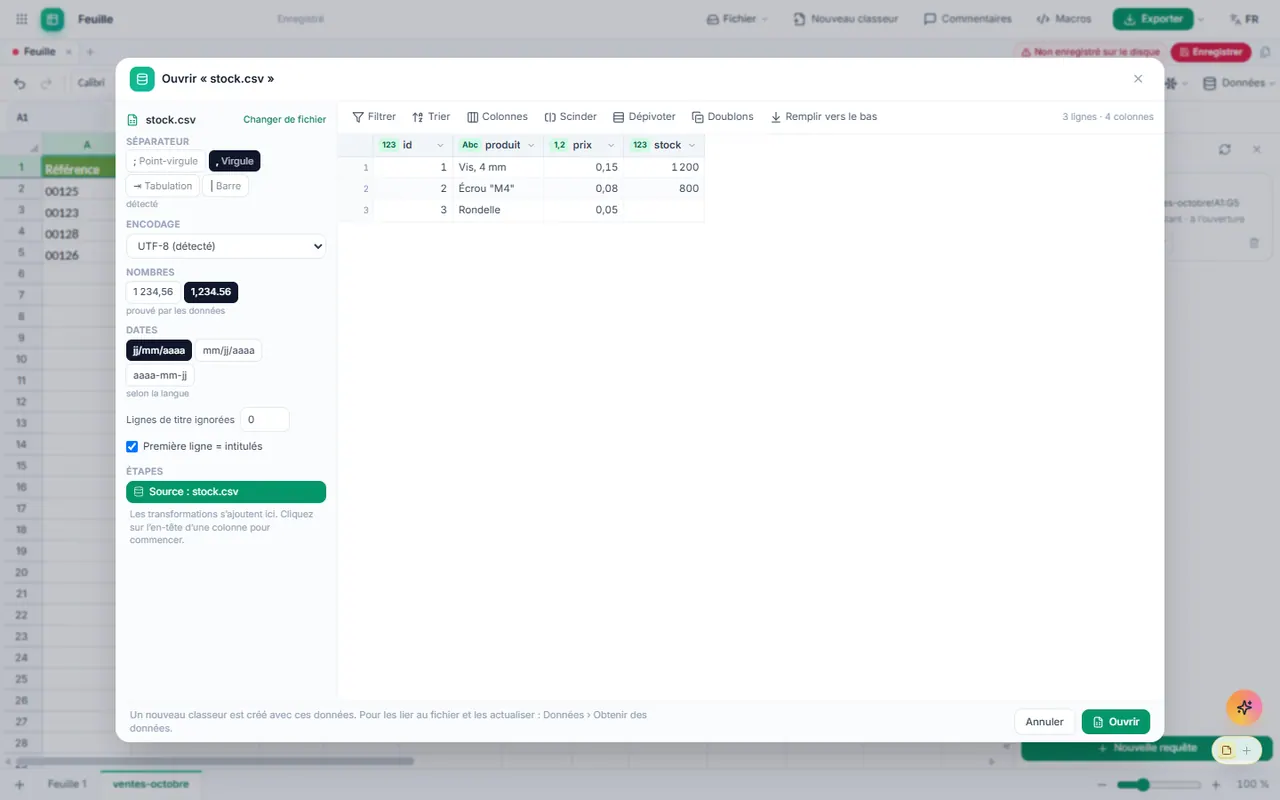
- To pick up an existing file, use File › Open… (Ctrl+O) or drag the file onto the window. A .csv file first goes through a preview that detects the delimiter, encoding, numbers and dates. If the file contains items that pulpSheet shows differently from Excel, an Items not shown or simplified window lists them.
- Type in a cell: text, a number, or a formula starting with =. More than 400 functions are available; their names follow the interface language (
=SUM(A1:A10)in English,=SOMME(A1:A10)in French) and the file always stores them the way Excel does. - Format with the toolbar: font, bold, colors, borders, alignment, number format, AutoSum, sorting, Conditional formatting, Insert chart, Freeze panes, and the Data and Page layout menus.
- Save with Ctrl+S. A workbook opened from an .xlsx or .xlsm file is written back to the same place; a new workbook, or one opened from .xls, .ods or .csv, is saved as a new .xlsx file.
Common tasks
How do I open an Excel file without Excel?
Use File › Open… or drag and drop. pulpSheet shows values, formulas, formatting, merged cells, frozen panes, filters, conditional formatting, drop-down lists, threaded comments, pictures, shapes, buttons, check boxes, charts (3-D ones included) and PivotTables. You can have several workbooks open at once, each in its own tab. If pulpSuite is installed as an app, a double-click in File Explorer is enough (see installing pulpSuite).
How do I open an old .xls file, a LibreOffice file or a very large workbook?
- Old Excel (.xls): values, formulas, number formats, merged cells, comments and links come across; formatting (colors, fonts, borders), charts, pictures and macros do not, and the opening window says so. Save creates a new .xlsx file. To keep everything, first reopen the file in Excel and save it as .xlsx.
- LibreOffice (.ods): cell formatting, merged cells, comments, links and drop-down lists come across; whatever does not (conditional formatting, filters, charts, pictures) is listed when the file opens.
- Large workbook: progress is shown while it opens (“Reading sheets (3 of 12)…”), and you can keep working or click Cancel. Opening that takes longer than 3 minutes is stopped with a message; the file is then probably too large for this device, or damaged.
- Password-protected file: it does not open. Remove the password in the software that created it (or save a copy without one), then open it again. The other possible messages are explained in the FAQ.
How do I save without damaging the original Excel file?
Ctrl+S writes back to the open .xlsx or .xlsm file: everything you have not touched stays as it was, and only your changes are written. If saving would lose something (a PivotTable slicer, for example), a window tells you before writing and offers Save a copy…, Overwrite anyway or Cancel. Export › Excel (.xlsx) downloads a copy; Export › CSV (current sheet) exports the sheet on screen, with dates exactly as they are displayed.
How do I create a PivotTable?
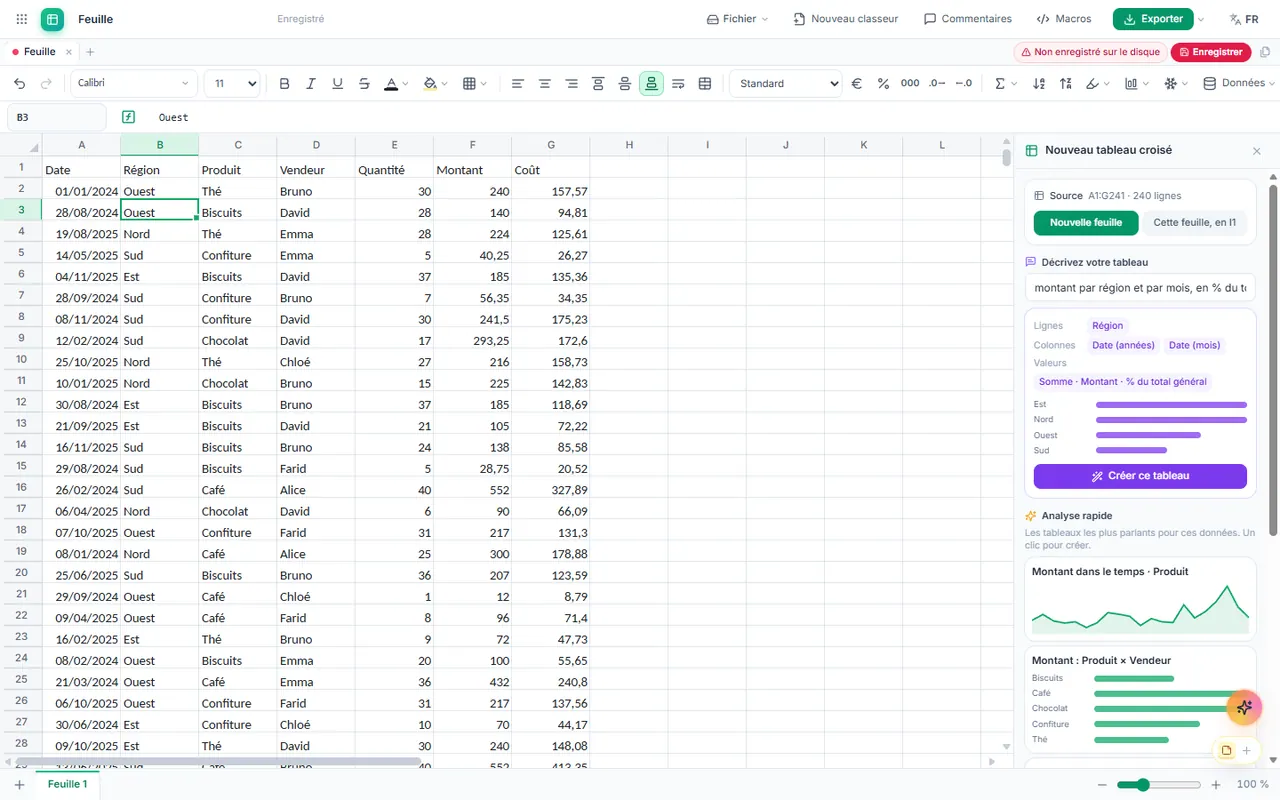
Click inside a table that has a header row, then choose Data › PivotTable…. The pane offers three routes:
- Quick analysis: the most telling tables for your data, created in one click;
- Describe your table: type, for example, “amount by region and by month, as % of total”, check the preview, then click Create this table;
- the Fields pane: drag fields into Filters, Columns, Rows and Values.
Each value can be summarized (sum, count, average, distinct count, standard deviation…) and shown as % of total, running total, rank or difference. You can group dates by years, quarters, months or days, create ranges, sort, filter (labels, values, top N), and add a Calculated field or Calculated item, a Slicer, a Timeline and a PivotChart. Choose the Layout (Compact, Outline, Tabular), subtotals, grand totals and style; Point out remarkable values highlights the largest rises, falls and outliers. Double-click a value to get Show details on a new sheet. Data › Refresh all PivotTables recalculates them after the source changes.
An imported PivotTable that relies on a feature you have to edit in Excel (manual grouping, external source…) is marked Read-only: it is still shown and kept.
How do I import and clean up a data file?
Data › Get data… opens the query editor. Pick a CSV, TSV or text file, a workbook (.xlsx, .xlsm, .xls, .ods), a data file (JSON, XML) or a saved web page (its tables). Click a column header to filter, sort, rename, change the type, split, unpivot, remove duplicates or fill down; Merge matches two queries on a shared column, and Append stacks their rows. Each transformation becomes a step you can move, review or delete. Then choose Load into (a new sheet, the current sheet, or nowhere, as a connection only) and, if you like, Refresh when the workbook opens. The data arrives as a table you can use in your formulas and PivotTables.
Data › Refresh all rereads the linked files; Data › Queries & connections lists them with their last refresh. If a file has been moved or renamed, pulpSheet offers Choose the file… or Keep the current data; if its columns have changed, it lists the missing and new columns and offers Edit the query or Load anyway. A sheet holds at most 1,048,576 rows: any extra rows are not loaded, and a message tells you so.
How do I insert a chart, including a 3-D one?
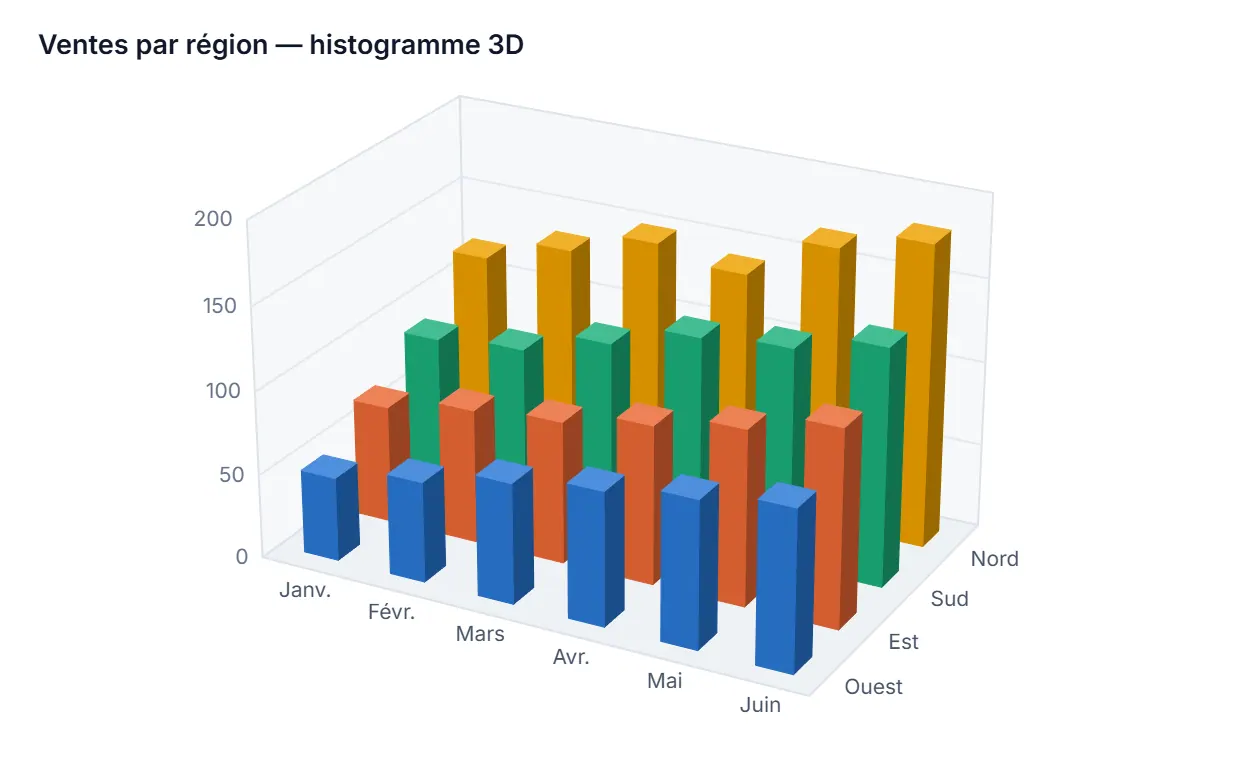
Select your data with its header row, then click Insert chart. Recommended charts suggests the charts that suit the shape of your data. Available types: column, bar, line, area, pie, doughnut, scatter, bar + line, waterfall, histogram, box plot, heat map, bubble, surface and 3-D scatter. The 3-D section adds 3-D column, bar, line, area and pie charts, plus a Surface z = f(x, y) drawn from a formula. You rotate a 3-D chart with the mouse or the arrow keys, and set its tilt, perspective, depth and bar shape (box, cylinder, cone, pyramid). Show flat (2-D) turns it back into a 2-D chart, and Show in 3-D brings the depth back.
The Format pane sets the title, colors, legend, axes, a target line or a trend line. Export gives you a PNG or SVG picture, and Animate plays a bar race, moving bubbles or a line that draws itself (which you can record as a WebM video).
3-D charts in an Excel file open in 3-D, with their viewing angle; if you rotate or edit them in pulpSheet, they remain 3-D charts in Excel.
How do I put a table or a chart in a pulpDoc document?
- A table: select the range, press Ctrl+C, then Ctrl+V in pulpDoc. The table arrives with its formatting (merged cells, colors, borders, numbers as displayed). Paste options also offer Keep text only or Picture.
- A chart: select it, click Copy chart (or press Ctrl+C), and paste it into pulpDoc or pulpSlide.
In pulpDoc, the copy stays linked to the workbook (it shows Linked to followed by the workbook name). When the workbook is open in pulpSuite and its data changes, the copy shows “Data changed in…”: click Update (Ctrl+Z undoes the update), or tick Update automatically. If you insert rows above the range in pulpSheet, the link follows it. If the workbook is closed, or the range or chart has been deleted, the copy keeps its data and a message explains why. Open workbook reopens it, and Remove link freezes the copy as it is.
How do I run the VBA macros in an Excel workbook?
pulpSheet runs the VBA macros of .xlsm files itself, without Excel. Nothing runs without your consent:
- Open the Macros pane (Alt+F8), File VBA tab. The File macros list shows the macros you can start; click a name to see its code, or Run to start it. A button in the workbook that is linked to a macro starts it with one click.
- The first time, pulpSheet asks “Enable this workbook’s macros?”. Only enable macros if you trust the author of the file.
- If the workbook contains automatic macros (run when it opens, or when you change or select certain cells), a banner offers Enable macros or Not now.
What you need to know:
- The macro works on a copy of the workbook, with no Internet and no access to your files or other data. Editing is locked while it runs; at the end, all its changes are applied at once, and a single Ctrl+Z undoes the whole macro.
- Stop (or Esc,
Ctrl+Break) interrupts the macro without applying anything. If it stops making progress, pulpSheet offers to stop it or Keep waiting. The Warn without progress after and Stop automatically after settings are at the bottom of the pane. - The macro's windows (messages, questions, input boxes) appear as they do in Excel, and so do most of its forms.
- If an error occurs, a window shows the line involved and offers End (keep the changes already made, as Excel does), Undo everything, Debug (show the line in the code) or Convert this part with the assistant.
- Some instructions are impossible in a browser: starting a program or a Windows command, controlling other applications (Outlook, Word…), reading or writing files on disk, opening other workbooks, simulating keystrokes. Check compatibility tells you, before you run anything, how much of the code can run in pulpSheet and lists what cannot.
- The VBA code is kept as it is when you save as .xlsm: the file still works in Excel.
Always check a macro's result before relying on it, especially the first time.
How do I create my own macros?
In the Macros pane, My macros tab: Record turns your typing, formatting and clearing into a macro; New opens an empty editor with a Cheat sheet. pulpSheet macros are written in JavaScript, run under the same conditions as VBA macros (on a copy, with no Internet and no access to your files, never on their own, undone with a single Ctrl+Z) and are saved in the workbook.
To convert a VBA macro that cannot run in pulpSheet, ask pulpAssist to rewrite it: the resulting macro is marked Not verified. Check against Excel compares it, cell by cell, with the file Excel produced using the original macro: provide the starting file and Excel's result; your files are not changed. The macro becomes Verified if everything matches, and shows Changed since verification if you edit it afterwards. Right-click a button in the workbook › Assign macro… to link it to a pulpSheet macro.
How do I print or make a PDF?
Ctrl+P opens the print preview: current sheet, whole workbook or selection, orientation, paper size, scaling (“Fit sheet on one page”…), margins, headers and footers, print titles, print area and page breaks. The Page layout menu gives direct access to orientation, print area, repeated titles and page breaks. These settings are saved with the workbook, Excel file included. For a PDF, choose Save as PDF in the browser's print window. See also printing.
How do several people comment on a workbook?
Right-click a cell › New comment, or press Shift+F2. The Comments pane gathers the threads: reply (Ctrl+Enter to post), mark a thread as Resolved, and filter by Open, Resolved or All. Threads are saved in the format of Excel's modern comments.
How do I sort, filter and clean up a list?
In the Data menu: Sort… (several levels), Filter (Ctrl+Shift+L, filter by values), Remove duplicates…, Text to columns… and Drop-down list… to offer choices in a range. Ctrl+F and Ctrl+H find and replace in the sheet. The fill handle (or Ctrl+D, Ctrl+R) extends series: numbers, dates, weekdays, months, “Item 1”, “Item 2”…
How do I organize sheets?
Right-click a tab: Rename, Duplicate, Tab color, Hide, Delete (Ctrl+Z to undo). Unhide sheet brings a hidden sheet back, including a “very hidden” sheet from an Excel file. At least one sheet must stay visible.
Supported formats
| Format | Open | Save | Notes |
|---|---|---|---|
| Excel (.xlsx) | Yes | Yes | Native format: only your changes are rewritten |
| Excel macro-enabled (.xlsm) | Yes | Yes | VBA is kept; it runs in pulpSheet with your consent |
| Excel 97-2003 (.xls) | Yes | No (saved as .xlsx) | Values, formulas, number formats, merged cells, comments and links come across; colors, fonts, borders, charts, pictures and macros are not imported |
| Excel Binary (.xlsb) | Yes | No (saved as .xlsx) | The same items come across as for .xls |
| XML Spreadsheet 2003 (.xml, .xls) | Yes | No (saved as .xlsx) | Recognised from its content |
| OpenDocument (.ods) | Yes | No (saved as .xlsx) | Formatting, merged cells, comments, links and drop-down lists come across; conditional formatting, filters, charts and pictures are not imported (reported) |
| CSV, TSV, text | Yes | CSV (current sheet) | Delimiter, encoding, numbers and dates detected; leading zeros and long IDs kept as text |
| Data file (JSON, XML), saved web page | Through Get data | No | Tables extracted, then loaded into a sheet |
| No | Through printing | The browser's “Save as PDF” |
Known limitations:
- Password-protected files do not open: remove the password in the original software.
- Parquet is listed in Get data but is not supported yet.
- Slicers and timelines are not written to the Excel file: the filtered values stay, but the filter disappears if the table is refreshed in Excel.
- A PivotTable that uses a pulpSheet-only option (distinct count, calculated item…) is recalculated by Excel in its own way when the file opens.
- Get data queries and pulpSheet macros are saved in the .xlsx file, invisible in Excel: Excel keeps the loaded data but does not run those queries or macros.
- VBA macros: only the open workbook is available to them; no files on disk, other workbooks, other applications, Internet or Windows functions.
- Not applied in pulpSheet, but kept when you save: sheet protection, sparklines, outlines (groups), split panes, manual or iterative calculation, ActiveX controls. Structured tables from an Excel file are shown as ordinary cells.
- An Excel chart of a partly supported type (radar, stock, some Excel 2016 charts) is shown simplified; if you edit it, it is rewritten as the closest classic chart.
Keyboard shortcuts
On a Mac, Cmd replaces Ctrl.
| Shortcut | Action |
|---|---|
| Ctrl+O | Open a file |
| Ctrl+S | Save |
| Ctrl+Shift+S | Save as |
| Ctrl+P | Print preview |
| Ctrl+Z | Undo |
| Ctrl+Y or Ctrl+Shift+Z | Redo |
| Ctrl+C, Ctrl+X, Ctrl+V | Copy, cut, paste |
| Ctrl+A | Select all |
| Ctrl+B, Ctrl+I, Ctrl+U | Bold, italic, underline |
| Ctrl+D, Ctrl+R | Fill down, fill right |
| Ctrl+; | Insert today's date |
| Ctrl + the key left of 1 | Show or hide formulas |
| Ctrl+F, Ctrl+H | Find, replace |
| Ctrl+Shift+L | Turn the filter on or off |
| Ctrl++, Ctrl+-, Ctrl+0 | Zoom in, zoom out, zoom 100% |
| F2 | Edit the cell |
| Shift+F2 | New comment |
| Alt+F8 | Macros pane |
| F4 | While typing a formula: cycle the reference between relative and absolute ($A$1, A$1, $A1) |
| Alt+Enter | New line inside the cell |
| Ctrl+Enter | Enter the same input in the whole selection |
| Enter, Shift+Enter | Confirm and move down, confirm and move up |
| Tab, Shift+Tab | Confirm and move right, left |
| Ctrl+Arrows | Jump to the edge of the data in that direction |
| Shift+Arrows | Extend the selection |
| PageUp, PageDown | Previous screen, next screen |
| Home, Ctrl+Home, Ctrl+End | Start of the row, cell A1, last used cell |
| Del | Clear contents |
| Esc | Cancel the current entry |
| F1 | Open the help |
In the macro editor, Ctrl+Enter runs the macro and Ctrl+S saves it. While a macro is running, Esc or Ctrl+Break stops it. On a 3-D chart, the arrow keys rotate it, + and - zoom, and 0 returns to the original view. Anywhere in the suite, Ctrl+J opens pulpAssist and Ctrl+Shift+O opens the open-documents panel.
Working together
A workbook can be shared with a team, or opened on a phone, without an account and without a pulpSuite server. The general idea is explained in Share a file with your team or your phone; to compare it with the other ways of working: Where your data lives and how to work together.
- Share a workbook: File › Save as a shared file… copies the workbook on screen into a synced folder (OneDrive, Nextcloud, kDrive) or onto a network drive, for example
Budget.psheet. It opens in a new tab; your original workbook is not changed. Your colleagues open it with File › Open a shared folder… and everyone sees the others’ changes as soon as the folder syncs (in about a second when two computers are open at the same time). - An Excel or LibreOffice file (.xlsx, .xlsm, .xls, .xlsb, .ods): open it, then share it the same way. So that several people can edit it at the same time, it is saved in the pulpSuite format (a folder); your original file is not changed, and the window explains this before creating the folder. File › Export as .xlsx (or Export) produces an up-to-date Excel file at any time, to send it or open it in another program; what pulpSheet keeps as-is from an Excel file (VBA macros of an .xlsm, items it does not display) is put back into it.
- Rows and columns: inserting or deleting rows at the same time as a colleague does not shift anything on the other side. Each value stays on its row: if Paul edits the “Rent” row while you insert a row above it, his value lands on “Rent”.
- Formulas: they follow their cells as in Excel.
=SUM(B2:B10)becomes=SUM(B2:B11)when someone inserts a row in the middle, on every computer; a formula pointing to a deleted row shows #REF!, and comes back intact if the deletion is undone. Renaming a sheet, even while a colleague types a formula that refers to it, breaks nothing. - What adds up without conflict: two people editing two cells, or the value and the format of the same cell, do not get in each other’s way. Results are recalculated on each computer.
- If two people change the same cell, the most recent value is kept and a notice tells you (“… also changed “column C” of “Budget, row 7””), with Keep or Use the other value. A row deleted while a colleague edits it stays deleted; the notice offers Restore.
- Sheets, objects, macros: adding, renaming, moving or deleting a sheet, merged cells, conditional formatting, drop-down lists, charts, PivotTables, pictures, defined names and macros are shared. Two sheets added at the same time with the same name are both kept (the second shows as “Name (2)”). A VBA macro module, or a pulpSheet macro, keeps the version saved last.
- Undo never undoes other people’s work: only your own changes are undone, and a cell a colleague has changed since is left alone.
- Who is where: the cell selected on each linked computer is shown in its color, with its name.
- File status: the badge in the title bar shows On this computer or Shared · N devices; a click shows who has received your changes and offers Sync now.
- Phone and guests: File › Open on my phone… shows a QR code; compare the 6-digit code on both devices, then choose Read only or Can edit. The Invite to this sheet and Invite to the whole workbook buttons in the title bar do the same for a colleague: invited to a sheet, they only see that sheet. In read-only mode the toolbar is disabled and nothing can be changed.
- Automatic backup: File › Automatic backup… keeps an .xlsx copy of the shared workbook every day in the folder of your choice.
pulpSheet-specific limits
- Only one shared file is open at a time; it appears as one more tab. Closing that tab closes it on this device (it stays in the recent shared files).
- A guest invited to one sheet does not see the other sheets: their formulas that read them show #REF!.
- References to defined names (
TotalSales), to tables (Sales[Price]) and 3-D references (January:March!B2) stay written as they are: the computer that inserts or deletes rows updates them, as Excel does. - Two people merging cells on the same sheet at the same time: the last list of merged cells is kept (with a notice).
- Formula results do not travel: each device recalculates them. For a function pulpSheet does not know, the last result calculated by Excel stays displayed.
- Anyone with access to the folder can see and change the whole workbook; encrypt the file if needed.
AI in pulpSheet
Recommended charts, Quick analysis and Describe your table work on your device, with no network connection: they understand simple sentences in English, French and Spanish, and always show a preview before creating anything.
With pulpAssist (Ctrl+J) you can ask it to read a range, write values or formulas, create a sheet or a PivotTable, or convert a VBA macro. Every change is shown on a confirmation card before it is applied, and Ctrl+Z undoes it afterwards. pulpAssist needs the network: the content needed for your request (a range, VBA code) is sent to it. Always review a formula or macro written by the assistant. See the pulpAssist help.
FAQ and troubleshooting
My file won't open. What can I do?
The “Could not open this file” message gives the reason:
- “this file is password-protected…”: open it in the application that created it, remove the password (or save a copy without one), then try again;
- “this is not a real .xlsx file (probably an old .xls that was renamed)”: rename it to .xls, then open it;
- “this is not a workbook but the small lock file (“~$…”)”: open the workbook itself, not this file that Excel creates while a workbook is open;
- “the file is damaged or is not a workbook” or “this file is empty”: ask for a fresh copy of the file;
- “Opening took more than 180 seconds and was stopped” or “The file reader stopped unexpectedly”: the file is too heavy for this device, or damaged. Close your other workbooks and tabs, then try again.
A formula gives a different result from Excel. Why?
pulpSheet calculates by Excel's rules and matches its results on the vast majority of workbooks tested, but a few functions are still missing (PIVOTBY and GROUPBY, for example) and custom functions written in VBA are not recalculated. Links to other workbooks show the last result Excel calculated. Compare important values before relying on them.
Where are my workbooks?
Open workbooks are kept in your browser, on your device, and come back when you reopen pulpSheet. They are only written to disk when you save: the Not saved to disk label reminds you. See open documents and saving and work folder.
Will the VBA macros in my file work?
Most of the time, yes: pulpSheet runs them once you agree (see running VBA macros). Check compatibility, in the Macros pane, tells you in advance what cannot run: access to files, to other workbooks or to other applications, Windows commands. For those parts, pulpAssist can suggest an equivalent pulpSheet macro, to be checked before use.
A macro hit an error: is my data damaged?
Not unless you keep the changes: choose Undo everything in the error window, or press Ctrl+Z after End. A macro interrupted with Stop applies nothing.
Does pulpSheet work offline?
Yes, once the suite has loaded: opening, calculating, running macros, saving and printing all happen on your device. Only pulpAssist needs the network.
Will my PivotTable show up in Excel?
Yes: a PivotTable created in pulpSheet is written as a real, refreshable Excel PivotTable, and its values are also written into the cells. Slicers and timelines, however, are not written (see the limitations above).